MT5 supports custom Expert Advisors and indicators through a specific file installation process that requires accessing the platform's data directory structure.
How Do I Add Expert Advisors?
Step 1 – Access Data Folder - Open MT5
- Click 'File' menu
- Select 'Open Data Folder'
Step 2 – Navigate to EA Folder - Open 'MQL5' folder
- Open 'Expert Advisors' folder
Step 3 – Install EA - Copy your EA file into this folder
- Close and reopen MT5
- Find EA in Navigator window
|
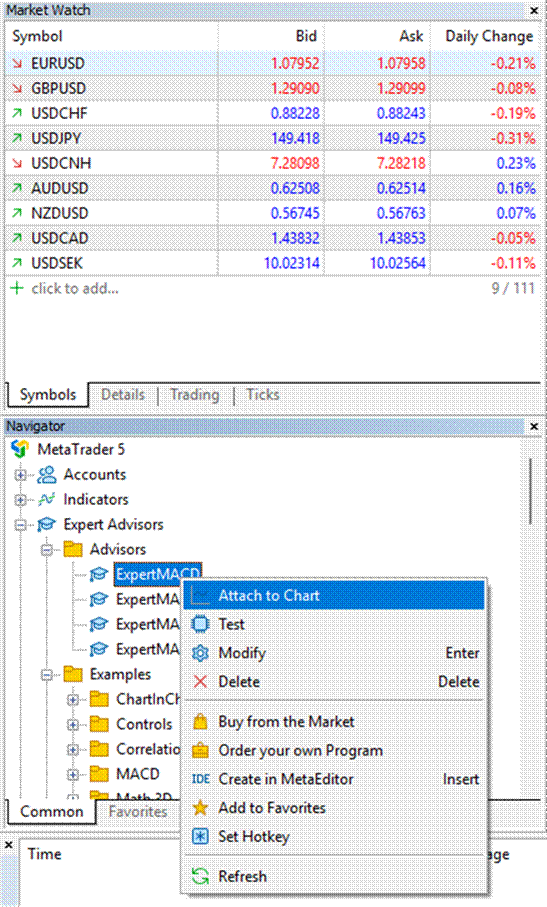
MT5 data folder — MQL5 > Expert Advisors
How Do I Add Indicators?
Step 1 – Access Data Folder - Open MT5
- Click 'File' menu
- Select 'Open Data Folder'
Step 2 – Navigate to Indicators Folder - Open 'MQL5' folder
- Open 'Indicators' folder
Step 3 – Install Indicator - Copy your indicator file into this folder
- Close and reopen MT5
- Find indicator in Navigator window
|
Important:
- Test with demo accounts first: If you didn't create the EA or indicator yourself, always test it with your demo account before using it live.
- Exercise discretion: You use Expert Advisors at your own risk. Always ensure appropriate testing and risk management measures are in place.
|